


What Is the EKS Cluster Autoscaler?
The Amazon EKS Cluster Autoscaler is a Kubernetes controller that automatically adjusts the number of worker nodes in your cluster by monitoring for pending pods that cannot be scheduled due to insufficient resources and terminating underutilized nodes. Most users on Reddit r/aws agree that default Auto Scaling groups (ASGs) alone are insufficient for dynamic Kubernetes workloads, making the Cluster Autoscaler essential for handling real-time resource requests.
How it works:
- Detecting unschedulable pods: Monitors for pods that cannot be placed because of insufficient resources or scheduling constraints.
- Selecting an EKS node group to scale: Simulates pod placement against available node groups and selects a suitable group for additional capacity.
- Increasing EC2 Auto Scaling Group capacity: Raises the desired capacity of the selected Auto Scaling group so new EC2 worker nodes can join the cluster.
- Identifying underutilized nodes: Determines whether workloads on unnecessary nodes can be moved elsewhere based on resource requests and scheduling requirements.
- Safely scaling nodes down: Verifies that movable pods can be rescheduled before reducing node-group capacity and terminating unnecessary nodes.
Core setup steps:
- Configure EKS node group scaling limits: Set minimum, maximum, and desired capacity for each node group the autoscaler can manage.
- Configure IAM permissions for the Cluster Autoscaler: Grant the autoscaler permission to inspect and modify the appropriate EC2 Auto Scaling groups.
- Enable node group auto-discovery: Apply the required Auto Scaling group tags so the autoscaler can discover eligible EKS node groups.
- Deploy the Cluster Autoscaler: Install it in the cluster and configure AWS as the cloud provider with the appropriate auto-discovery settings.
- Match the autoscaler version to the EKS Kubernetes version: Use a Cluster Autoscaler release matching the cluster's Kubernetes major and minor version.
- Verify Cluster Autoscaler operation: Check the autoscaler pod and logs, then test that unschedulable pods trigger node scale-out as expected.
This is part of a series of articles about Kubernetes scheduling
In this article:
- How Does the EKS Cluster Autoscaler Work?
- How to Setup Cluster Autoscaler on EKS
- EKS Cluster Autoscaler vs. Horizontal Pod Autoscaler
- EKS Cluster Autoscaler vs. EKS Auto Mode
- EKS Cluster Autoscaler Best Practices
How Does the EKS Cluster Autoscaler Work?
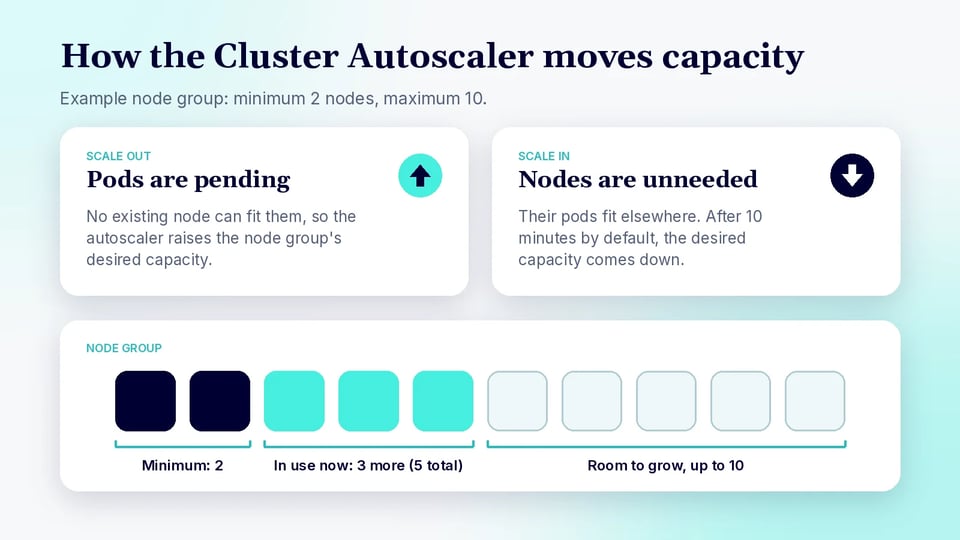
Detecting Unschedulable Pods
The Cluster Autoscaler regularly checks the Kubernetes API for pods that the scheduler cannot place on any existing node. A pod may become unschedulable when its CPU, memory, GPU, or other resource requests cannot be satisfied, or when scheduling constraints such as node selectors, affinity rules, and taints limit where it can run.
By default, the Cluster Autoscaler scans the cluster approximately every 10 seconds. When it finds unschedulable pods, it determines whether adding capacity to one of the configured node groups would allow those pods to run.
Selecting an EKS Node Group to Scale
For each unschedulable pod, the Cluster Autoscaler simulates scheduling the pod onto hypothetical new nodes from the available EKS node groups. It considers factors such as the node group's CPU and memory capacity, labels, taints, and other scheduling properties.
AWS recommends that nodes within a node group have identical scheduling characteristics. For example, instance types used with an EC2 Mixed Instances Policy should have similar CPU, memory, and GPU capacity because the Cluster Autoscaler uses the first instance type in the policy when simulating scheduling. Once it identifies suitable groups, its configured expander strategy determines which group should be increased.
Increasing EC2 Auto Scaling Group Capacity
After selecting a suitable node group, the Cluster Autoscaler increases its desired capacity. EKS node groups are backed by EC2 Auto Scaling groups, so increasing the node group causes EC2 instances to be launched and subsequently registered as Kubernetes nodes.
This process continues until sufficient capacity is available or the node group reaches its configured maximum size. With EKS managed node groups, every managed node belongs to an EC2 Auto Scaling group, and EKS synchronizes node-group scaling information with changes made by external components such as the Cluster Autoscaler.
Identifying Underutilized Nodes
The Cluster Autoscaler also looks for nodes that are no longer required. Rather than simply monitoring actual CPU utilization, it evaluates Kubernetes resource requests and determines whether workloads running on a node could be scheduled elsewhere in the cluster.
A node must remain unnecessary for a configured period before it becomes eligible for removal. The default --scale-down-unneeded-time is 10 minutes, although this and other scale-down thresholds can be adjusted. This delay helps prevent nodes from being repeatedly added and removed during short-term workload fluctuations.
Safely Scaling Nodes Down
Before removing a node, the Cluster Autoscaler performs a scheduling simulation to verify that its movable pods can run on other available nodes. Certain workloads can prevent scale-down, including pods protected by restrictive PodDisruptionBudgets or pods that cannot safely be moved.
When a node can be removed, the Cluster Autoscaler coordinates its removal and reduces the corresponding node group's desired capacity. With EKS managed node groups, node terminations include automatic draining behavior designed to evict workloads gracefully before the underlying EC2 instance is terminated. This allows the cluster to reduce unused capacity while minimizing disruption to running applications.
How to Setup Cluster Autoscaler on EKS
Setting up the Cluster Autoscaler on Amazon EKS requires configuring the node groups for autoscaling, granting the autoscaler permission to modify EC2 Auto Scaling groups, and deploying a Cluster Autoscaler version compatible with the Kubernetes version of the cluster.
Step 1: Configure EKS Node Group Scaling Limits
Start by configuring minimum, maximum, and desired capacity for each EKS managed node group or self-managed EC2 Auto Scaling group that the Cluster Autoscaler will control. The autoscaler can adjust capacity only within these configured minimum and maximum limits.
For example, a node group might have a minimum size of 2 nodes and a maximum size of 10. The Cluster Autoscaler can then increase or decrease the desired capacity between those values as workload demand changes. AWS recommends configuring node groups so that instances within the same group have equivalent scheduling properties and similar resource capacity.
Step 2: Configure IAM Permissions for the Cluster Autoscaler
The Cluster Autoscaler requires AWS IAM permissions to inspect Auto Scaling groups and change their desired capacity. AWS recommends giving these permissions to the Kubernetes service account used by the autoscaler rather than assigning broad permissions to every worker node.
On EKS, this can be configured using an IAM role associated with the cluster-autoscaler service account in the kube-system namespace. The policy should allow the autoscaler to perform required Auto Scaling actions while restricting scaling operations to the Auto Scaling groups associated with the relevant EKS cluster.
Step 3: Enable Node Group Auto-Discovery
AWS recommends using Cluster Autoscaler auto-discovery instead of manually listing individual Auto Scaling groups. Auto-discovery lets the autoscaler identify which node groups belong to the EKS cluster by examining Auto Scaling group tags.
The commonly used discovery tags are:
k8s.io/cluster-autoscaler/enabled = truek8s.io/cluster-autoscaler/<cluster-name> = ownedTools such as eksctl can configure these tags automatically. For example, creating a cluster with eksctl create cluster --asg-access adds the required autoscaling permissions and discovery tags.
Step 4: Deploy the Cluster Autoscaler
Deploy the Cluster Autoscaler into the EKS cluster, typically in the kube-system namespace. It can be installed using the official Kubernetes Cluster Autoscaler manifest or its Helm chart.
The deployment must specify AWS as the cloud provider and configure auto-discovery for the cluster. For example:
--cloud-provider=aws--node-group-auto-discovery=asg:tag=k8s.io/cluster-autoscaler/enabled,k8s.io/cluster-autoscaler/<cluster-name>The official deployment also uses the system-cluster-critical priority class so the autoscaler itself is less likely to be evicted when cluster resources become constrained.
Step 5: Match the Autoscaler Version to the EKS Kubernetes Version
Use a Cluster Autoscaler release that matches the Kubernetes major and minor version running on EKS. For example, a Kubernetes 1.32 cluster should generally run a Cluster Autoscaler 1.32.x release rather than a release intended for another Kubernetes minor version.
Keeping the versions aligned is important because the Cluster Autoscaler depends on Kubernetes APIs and scheduler behavior that can change between releases. When upgrading an EKS cluster, the autoscaler version should therefore be reviewed and upgraded as necessary.
Step 6: Verify Cluster Autoscaler Operation
After deployment, verify that the Cluster Autoscaler pod is running:
kubectl get pods -n kube-systemYou can then inspect its logs:
kubectl logs -n kube-system deployment/cluster-autoscalerA practical test is to deploy workloads with resource requests large enough to leave pods pending. If no existing node has sufficient capacity, the Cluster Autoscaler should detect the unschedulable pods and increase the desired capacity of an eligible Auto Scaling group. When demand later decreases and nodes remain unnecessary, it can scale the node group back down within its configured limits.
EKS Cluster Autoscaler vs. Horizontal Pod Autoscaler
The EKS Cluster Autoscaler and Horizontal Pod Autoscaler (HPA) operate at different layers of an EKS environment. The Cluster Autoscaler scales worker nodes, while the HPA scales application pods. AWS recommends using workload autoscaling such as HPA together with a node autoscaler when applications and cluster capacity both need to respond dynamically to demand.
The Horizontal Pod Autoscaler monitors metrics such as CPU, memory, or custom metrics and changes the replica count of a workload such as a Deployment. If increased replicas cannot be scheduled because existing nodes lack capacity, the Cluster Autoscaler can then add nodes to accommodate those pending pods.
| EKS Cluster Autoscaler | Horizontal Pod Autoscaler | |
|---|---|---|
| What it scales | Worker nodes | Pods |
| Primary trigger | Unschedulable pods and unnecessary nodes | CPU, memory, custom, or external metrics |
| Main purpose | Adjust cluster compute capacity | Adjust application capacity |
| AWS infrastructure interaction | Changes EC2 Auto Scaling group capacity | Changes Kubernetes workload replica counts |
For example, an HPA might increase an application from five to ten pods when CPU utilization rises. If the cluster does not have enough resources for the additional pods, some remain pending, which can trigger the Cluster Autoscaler to increase node capacity.
Related content: Read our guide to the Kubernetes Vertical Pod Autoscaler (VPA).
EKS Cluster Autoscaler vs. EKS Auto Mode
The EKS Cluster Autoscaler is a customer-managed Kubernetes autoscaling component, whereas EKS Auto Mode provides AWS-managed infrastructure automation that includes compute autoscaling. Cluster Autoscaler works primarily by increasing or decreasing the desired capacity of predefined EC2 Auto Scaling groups. EKS Auto Mode instead uses a Karpenter-based system that can provision nodes in response to individual workload requirements.
With Cluster Autoscaler, organizations remain responsible for installing and maintaining the autoscaler and configuring suitable node groups, Auto Scaling groups, IAM permissions, and scaling limits. EKS Auto Mode removes much of this operational work: AWS manages node provisioning, node software, patching, compute autoscaling, and several related infrastructure capabilities.
| EKS Cluster Autoscaler | EKS Auto Mode | |
|---|---|---|
| Scaling model | Scales predefined Auto Scaling groups | Karpenter-based dynamic node provisioning |
| Node groups | Typically requires managed or self-managed node groups | Uses managed NodePools and NodeClasses |
| Management | Customer installs and operates the autoscaler | AWS manages compute autoscaling |
| Instance selection | Constrained by configured node-group capacity and instance types | Can select appropriate capacity based on workload requirements |
| Node lifecycle | Primarily controlled through ASGs and Cluster Autoscaler | AWS manages provisioning, consolidation, updates, and replacement |
| Other infrastructure automation | Focused on node scaling | Also manages networking, load balancing, block storage, and other components |
EKS Auto Mode is therefore a broader managed infrastructure option rather than simply another version of Cluster Autoscaler. AWS states that Auto Mode can automatically create nodes when pods cannot fit on existing capacity, consolidate workloads, and remove nodes that are no longer required.
EKS Cluster Autoscaler Best Practices
Here are some useful measures to keep in mind when working with the Cluster Autoscaler in EKS.
1. Use EKS Managed Node Groups Where Possible
AWS recommends using EKS managed node groups with the Cluster Autoscaler. Managed node groups handle much of the EC2 node lifecycle for you, including provisioning, upgrades, registration, and graceful node termination.
They also integrate directly with EC2 Auto Scaling groups and include features that simplify Cluster Autoscaler operation, such as automatic Auto Scaling group discovery and managed draining during many node lifecycle operations.
2. Keep Node Groups as Homogeneous as Possible
Nodes within the same node group should have identical scheduling characteristics, including labels, taints, and available resources. The Cluster Autoscaler models a node group as if its nodes are interchangeable, so large differences between instances can produce inaccurate scaling decisions.
When using a Mixed Instances Policy, AWS recommends choosing instance types with similar CPU, memory, and GPU capacity. The Cluster Autoscaler uses the first instance type in the policy when simulating scheduling; smaller instances may leave pods unschedulable, while larger instances can result in wasted resources.
3. Minimize the Number of Node Groups
Prefer a smaller number of larger node groups instead of creating many small groups for individual applications or teams. During each autoscaling cycle, the Cluster Autoscaler evaluates unschedulable pods against available node groups, so increasing the number of groups increases processing and API overhead.
AWS specifically identifies excessive node groups as an autoscaling scalability anti-pattern. Separate groups are still appropriate when workloads genuinely require different scheduling characteristics, such as GPUs, Spot capacity, or zone-specific resources.
4. Set Accurate Pod Resource Requests
Define realistic CPU and memory requests for workloads so the Kubernetes scheduler and Cluster Autoscaler have an accurate representation of the resources each pod requires. The autoscaler bases scaling decisions primarily on pod resource requests rather than actual instantaneous resource utilization.
Requests that are too high can cause unnecessary node scale-outs and poor bin packing, while requests that are too low can lead to resource contention even when Kubernetes appears to have sufficient capacity. Resource limits can also be configured where appropriate to control how much additional capacity a container can consume.
5. Use Node Selectors and Taints Only When Necessary
Use node selectors, node affinity, and taints when workloads genuinely require specific types of nodes, rather than as the default way to organize applications. Each additional scheduling restriction reduces the number of nodes on which a pod can run and can force the Cluster Autoscaler to maintain additional node groups.
AWS recommends using mechanisms such as Kubernetes namespaces for ordinary workload isolation and treating node selectors and taints as exceptions. Dedicated node groups remain useful for workloads with real infrastructure requirements, such as GPUs or Spot instances.
6. Configure Pod Disruption Budgets Carefully
Pod Disruption Budgets (PDBs) can protect application availability during voluntary disruptions, but overly restrictive PDBs can prevent the Cluster Autoscaler from removing otherwise unnecessary nodes. Before scaling down, the autoscaler must determine whether workloads can be safely evicted and scheduled elsewhere.
Configure PDBs to provide the required level of availability without making voluntary eviction effectively impossible. Also account for EKS-specific node lifecycle behavior: some managed node group termination operations can eventually proceed even when a PDB prevents all pods from being drained.
7. Use Multi-AZ Auto Scaling Groups Where Appropriate
For workloads without Availability Zone-specific scheduling requirements, AWS recommends defining regional capacity as a single EC2 Auto Scaling group spanning multiple Availability Zones. This can reduce the number of node groups the Cluster Autoscaler must evaluate and improve scalability.
However, workloads tied to zonal resources require additional consideration. For example, applications using zone-specific EBS volumes, required zone-based node affinity, or zone-specific pod affinity may need separate node groups for individual Availability Zones. For stateful multi-AZ applications using EBS, AWS recommends single-AZ node groups together with --balance-similar-node-groups.
FAQ
What is the EKS Cluster Autoscaler? The Amazon EKS Cluster Autoscaler is a Kubernetes controller that adjusts the number of worker nodes in a cluster. It adds nodes when pods cannot be scheduled because of insufficient resources and removes nodes that are no longer needed.
How does the Cluster Autoscaler decide to add nodes? It checks the Kubernetes API about every 10 seconds for pods the scheduler cannot place. For each one, it simulates scheduling onto hypothetical new nodes from the available node groups, picks a group using its expander strategy, and raises that group's desired capacity until the pods fit or the maximum size is reached.
Why is the Cluster Autoscaler not scaling down a node?
A node must stay unnecessary for a set time before removal, and the default --scale-down-unneeded-time is 10 minutes. Scale-down can also be blocked by restrictive PodDisruptionBudgets or by pods that cannot safely be moved to other nodes.
What is the difference between the Cluster Autoscaler and the Horizontal Pod Autoscaler? The Cluster Autoscaler scales worker nodes, while the Horizontal Pod Autoscaler scales application pods. They work together. When the HPA adds replicas that do not fit on existing nodes, the pending pods can trigger the Cluster Autoscaler to add nodes.
What is the difference between the Cluster Autoscaler and EKS Auto Mode? The Cluster Autoscaler is a customer-managed component that scales predefined EC2 Auto Scaling groups. EKS Auto Mode is AWS-managed and uses a Karpenter-based system that provisions nodes for individual workload needs. It also manages other infrastructure such as networking, load balancing, and block storage.
Which Cluster Autoscaler version should I run on EKS? Use a release that matches your cluster's Kubernetes major and minor version. For example, a Kubernetes 1.32 cluster should generally run a Cluster Autoscaler 1.32.x release. Review the autoscaler version whenever you upgrade the cluster.
Maximize EKS Cluster Autoscaler Efficiency with PerfectScale
Node autoscalers like the Cluster Autoscaler scale nodes up and down based on demand, improving cluster availability and reducing idle costs. But even a well-configured autoscaler can only act on the resource requests it is given. Over-provisioned containers waste capacity and force the autoscaler to add more nodes than necessary, under-provisioned containers lead to pod evictions, node pressure, and unstable workloads, and inefficient bin-packing leaves resources underutilized while triggering unnecessary scaling events. PerfectScale addresses these challenges by combining autonomous workload right-sizing with deep visibility into your autoscaling groups and node pools, so your Cluster Autoscaler makes better scaling decisions.
Key capabilities of PerfectScale:
- Proactive configuration error detection: Continuously analyzes workloads to identify and address configuration errors such as CPU Request Not Set, Memory Request Not Set, and Memory Limit Not Set, preventing unpredictable evictions, node over-commitment, and inefficient autoscaling.
- Autonomous workload right-sizing: Instantly adjusts workload resources based on actual utilization and improves pod bin-packing to boost autoscaling efficiency, all without manual intervention.
- Autoscaling group and node pool visibility: Provides detailed insight into the costs and utilization of your autoscaling groups and node pools, helping you identify inefficiencies and achieve precise resource distribution.
- Optimal node type selection: Helps you match node types to your workloads' CPU, memory, and GPU requirements to improve utilization, bin-packing, and overall cluster efficiency.
- Combined node- and pod-level optimization: Pairs node-level optimization with pod-level right-sizing to enable faster scaling decisions, improved performance, and reduced cloud spend.
Learn more about how PerfectScale helps you autoscale Kubernetes nodes without guesswork