


kubectl rollout is the command that you use to control and inspect how Kubernetes rolls out changes to a workload. When you change a Deployment, Kubernetes replaces the old pods with new ones, and kubectl rollout is how you watch that process, pause it, roll it back, restart it, and see its history.
In this guide, you'll learn how Kubernetes actually runs a rollout under the hood, every kubectl rollout subcommand with examples, why rollouts get stuck and how to diagnose them, and the practices that make rollouts safe in production.
What is kubectl rollout?
kubectl rollout is a set of commands for managing the rollout of a workload after you change it. A rollout is the process of replacing the pods running the old version with pods running the new one. The command does not change your workload itself. Instead, it lets you observe and control the rollout that a change sets off: check whether it finished, look at what changed, undo it, pause and resume it, or restart the pods.
It works with the workloads that manage rollouts for you, which are Deployments, StatefulSets, and DaemonSets. Most of this guide uses a Deployment, since that is where rollouts are most common.
How Kubernetes actually executes a rollout?
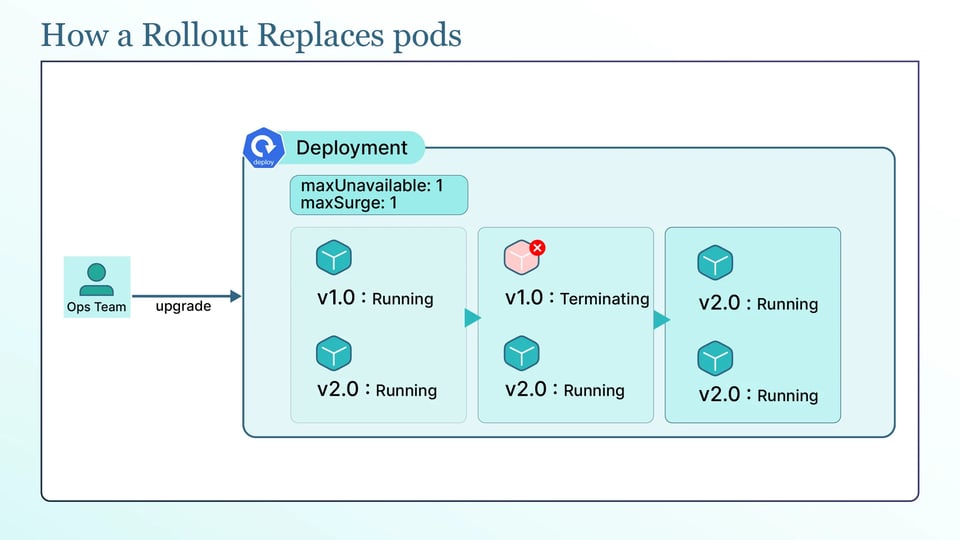
When you change a Deployment's pod template, Kubernetes does not edit the running pods. It creates a new ReplicaSet for the new version and gradually moves pods from the old ReplicaSet to the new one. Each ReplicaSet, and every pod it owns, carries a pod-template-hash label, which is a hash of the pod template. This label is how Kubernetes tells the versions apart and keeps each pod attached to the right ReplicaSet. When you roll back later, Kubernetes is really just scaling an old ReplicaSet back up.
The important part is knowing which changes actually start a rollout. Only change to the pod template, the .spec.template field, create a new ReplicaSet and a new revision. That means a new image, a changed environment variable, or an updated resource request all trigger a rollout. A change to the replica count does not, because scaling up or down only resizes the current ReplicaSet rather than creating a new one. This is why scaling a Deployment never shows up in its rollout history.
The speed of the rollout is controlled by two fields under the rolling update strategy. The maxSurge sets how many extra pods can exist above the desired count during the rollout, and it defaults to 25%, rounded up. The maxUnavailable sets how many pods can be missing below the desired count during the rollout, and it defaults to 25%, rounded down. Together, they control how quickly Kubernetes replaces old pods with new ones. Setting maxSurge: 1 and maxUnavailable: 0 is a common safe choice, since it adds one new pod before removing an old one and never drops below full capacity.
There are three more settings that control the progress of the rollout. A new pod only counts as available once its readiness probe passes, so without a good readiness probe Kubernetes will treat a pod as ready before it can serve traffic and move on too early. The minReadySeconds makes a pod wait, after it is ready, before it counts as available, which catches a pod that passes its probe and then crashes seconds later. And the progressDeadlineSeconds, which defaults to 600 (10 minutes), is how long Kubernetes waits for the rollout to make progress before it marks the Deployment as failed with ProgressDeadlineExceeded.
The kubectl rollout subcommands and which resources support them
kubectl rollout has six subcommands: status, history, undo, pause, resume, and restart. They do not all apply to every workload. The status, history, undo, and restart work on Deployments, StatefulSets, and DaemonSets. The pause and resume work on Deployments only, because only a Deployment has a pausable rollout. The sections below cover each one, using a Deployment named api.
kubectl rollout status
kubectl rollout status follows a rollout and tells you when it is done:
kubectl rollout status deployment/apiWhile it runs, it prints progress and exits when the rollout finishes. You will see lines like Waiting for deployment "api" rollout to finish: 2 out of 4 new replicas have been updated... and finally deployment "api" successfully rolled out. Each line reflects the new ReplicaSet scaling up and pods becoming available.
By default, the command streams and waits. There are two flags that change this behavior: --timeout stops it waiting forever, which matters in a script, and --watch=false makes it print the current status once and exit instead of streaming:
kubectl rollout status deployment/api --timeout=5mkubectl rollout status deployment/api --watch=falseThe most useful part of rollout status is its exit code. It returns 0 when the rollout succeeds and a non-zero code when it fails or times out. This makes it useful for CI/CD pipelines: the pipeline can wait for the rollout to finish and fail if the Deployment does not become ready, instead of treating a successful kubectl apply as a successful deployment.
kubectl rollout history
kubectl rollout history lists a workload's past revisions, so you can see what changed and pick one to roll back to:
kubectl rollout history deployment/apiThe output is a table of revision numbers and a CHANGE-CAUSE column. To see the full pod template of one revision, pass --revision:
kubectl rollout history deployment/api --revision=2The CHANGE-CAUSE column is only filled in if you set the kubernetes.io/change-cause annotation. The old --record flag that used to populate it is deprecated, so the current way is to set the annotation yourself after a change:
kubectl annotate deployment/api kubernetes.io/change-cause="update image to api:1.4.0"Without the annotation, the column shows <none>, making it harder to tell what changed in each revision.
How far back you can roll back depends on revisionHistoryLimit, which defaults to 10. Kubernetes keeps that many old ReplicaSets and removes older ones. If the limit is too low, the revision you want to roll back to may no longer exist.
kubectl rollout undo
kubectl rollout undo rolls a workload back. With no arguments, it goes to the previous revision, and with --to-revision it goes to a specific one from the history:
kubectl rollout undo deployment/apikubectl rollout undo deployment/api --to-revision=2This works because Kubernetes still has the old ReplicaSet and simply scales it back up. A rollback is itself a rollout, so follow it with rollout status to confirm it finished.
One important limitation is that undo only restores the pod template. This includes the container image, environment variables, and resource settings. It does not undo changes made outside the pod template. For example, if the release also changed a ConfigMap, Secret, database schema, or external system, rolling back the Deployment does not reverse those changes.
For this reason, treat rollout undo as a quick recovery tool, not as your normal deployment strategy. It can quickly restore a previous pod version, but it cannot roll back everything that may have changed during a release.
kubectl rollout restart
kubectl rollout restart restarts all the pods in a workload without changing the image:
kubectl rollout restart deployment/apiThe command adds a kubectl.kubernetes.io/restartedAt annotation with the current timestamp to the pod template, because this changes the pod template, and Kubernetes treats it as a normal rollout. It creates a new ReplicaSet and replaces the old pods gradually, following maxSurge, maxUnavailable, and readiness probes. With properly configured probes, this allows the application to restart without downtime.
A common use case is picking up changes that do not automatically restart pods. For example, when you update a ConfigMap or Secret that the application reads only at startup, existing pods continue using the old values. A rollout restart replaces those pods so they start with the new values.
A rollout restart is more controlled than manually deleting pods or scaling a Deployment to zero. Manually deleting pods replaces them, but does not give you the same controlled rollout process, and scaling to zero stops all pods before starting new ones, which causes downtime. A rollout restart replaces the pods gradually while following the Deployment's rollout settings.
kubectl rollout pause and resume
kubectl rollout pause stops a Deployment from acting on changes, and kubectl rollout resume lets it continue:
kubectl rollout pause deployment/apikubectl rollout resume deployment/apiThere are two ways this is useful. The first is batching several changes into a single rollout. If you pause first, then change the image, resources, and environment, and then resume, Kubernetes performs one rollout with all the changes instead of a separate rollout for each edit:
kubectl rollout pause deployment/apikubectl set image deployment/api api=api:1.5.0kubectl set resources deployment/api -c=api --limits=cpu=500m,memory=512Mikubectl rollout resume deployment/apiThe second is pausing in the middle of a rollout to validate a partial canary. You start a rollout by changing the image, let a few new pods come up, then pause. Now a small share of traffic is on the new version while the rest stays on the old one, and you can watch its metrics and logs. If it looks healthy, resume to finish the rollout, and if it does not, undo to roll back. Remember that you cannot roll back a paused Deployment, so resume it before running undo.
Why rollouts get stuck and how to diagnose them?
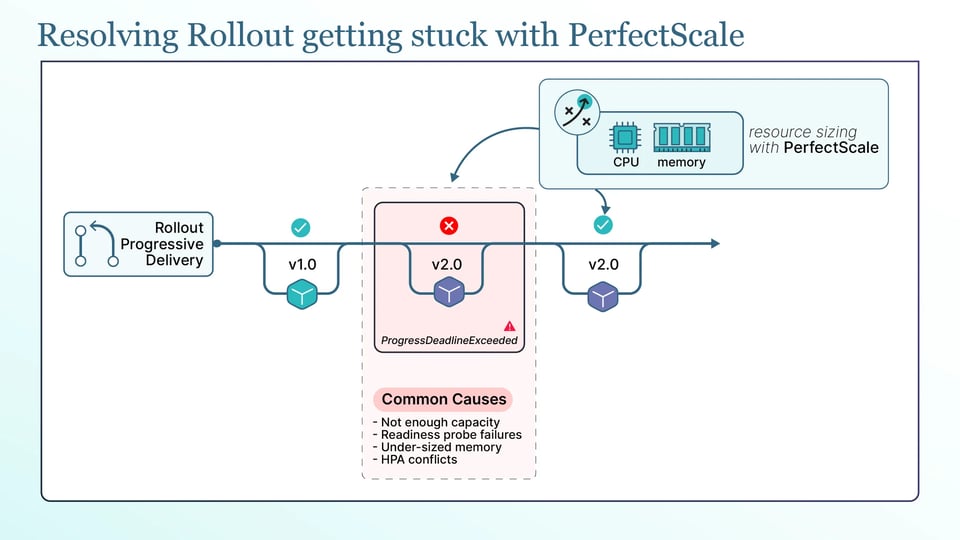
A rollout gets stuck when new pods fail to become available, and the Deployment eventually reports ProgressDeadlineExceeded. The following are the most common causes:
a. Not enough cluster capacity for the surge pods: A rolling update creates extra pods (maxSurge) before removing old ones, so the rollout needs spare CPU and memory to schedule them. If the cluster has no room, the surge pods stay Pending, and the rollout cannot move. You have to check with kubectl get pods and kubectl describe pod on the pending pod, and see whether the Cluster Autoscaler can add a node.
b. Readiness probe failures and CrashLoopBackOff: If the new pods start but never pass their readiness probe, or crash and restart in a loop, they never count as available, and the rollout stalls. Read the new pod's logs with kubectl logs and its events with kubectl describe pod. This is where a misconfigured probe or a bad new image shows up.
c. OOMKills from under-sized memory requests and limits: If the new version needs more memory than its limit allows, the kernel kills each new pod as it starts, so the pod shows OOMKilled with exit code 137 and the rollout never completes. The pod's own logs are usually empty, because the container was killed rather than crashing, so the signal is in kubectl describe pod under the last state.
d. PodDisruptionBudgets do not block the rollout itself: A PodDisruptionBudget does not constrain a Deployment's rolling update. PDBs do not limit workload rolling updates because the rollout replaces pods directly rather than through the eviction API. What a PDB does constrain is voluntary evictions: node drains, Cluster Autoscaler scale-down, and similar. So a PDB can block a node drain that is happening at the same time as your rollout, and a badly set PDB (for example minAvailable equal to the replica count) can block drains entirely, but it is not what is holding up the rollout itself.
e. Horizontal Pod Autoscaler and replica conflicts: If an HPA manages a Deployment's replicas and you also hardcode replicas in the manifest, every kubectl apply resets the count to the manifest value until the HPA corrects it again. This can cause confusing scaling during a rollout. The fix is to leave replicas out of the manifest for any Deployment an HPA manages.
Most of these problems come back to resource sizing. Surge pods that cannot fit on the cluster and new pods that get OOMKilled both point to incorrect resource settings. This is where PerfectScale helps. Its Kubernetes governance platform watches how your workloads actually use CPU and memory and turns that into actionable, automated right-sizing recommendations that you can apply manually or autonomously. With requests and limits that match reality, your surge pods fit and your new pods have the memory they need, so rollouts finish cleanly instead of getting stuck. Teams like Paramount Pictures and Creditas use PerfectScale to keep their clusters efficient, and you can sign up or book a technical session.
Best practices for running kubectl rollout in production
Here are a few simple practices to keep production rollouts safe and smooth:
a. Right-size requests and limits before you roll out: You have to set accurate resource requests and limits before starting a rollout. This gives surge pods enough room to schedule and reduces the risk of new pods getting OOMKilled.
b. Check metrics and logs, not just rollout status: A successful rollout status only means the new pods became ready. It does not mean the application is working correctly. You should check error rates, latency, and logs after a rollout, especially when using a paused canary.
c. Set progressDeadlineSeconds and --timeout explicitly: You have to set a reasonable progressDeadlineSeconds so Kubernetes marks a stuck Deployment as failed. Use --timeout with rollout status so your pipeline stops waiting after a defined period.
d. Add a change-cause annotation to every change: You should set kubernetes.io/change-cause when making changes so rollout history clearly shows what changed in each revision. This makes it easier to choose the right revision during a rollback.
e. Keep revisionHistoryLimit high enough to roll back safely: The default of 10 is fine for most workloads, but if you deploy very frequently, make sure it still covers the revisions you might realistically need to return to.
f. Limit the blast radius by rolling out gradually: Avoid sending a risky change to every namespace or cluster at once. Roll it out in stages so you can catch problems early and stop before they affect everything.
g. Move from manual commands to GitOps and progressive delivery: kubectl rollout is useful for learning and managing rollouts manually. For larger production environments, tools such as Argo CD or Flux can manage deployments through GitOps, while Argo Rollouts or Flagger can automate canary and blue-green deployments.