
PerfectScale
Split Cost Allocation no EKS
Learn how Split Cost Allocation for EKS helps connect spend and services in this blog recap of our Frugal Architect webinar with AWS’s Nataliya Godunok.
Esta página também está disponível em English, Deutsch, Español, Français, Italiano e 日本語.

About Marie Jaksman
Senior Marketing Manager
Part growth marketer, part DevOps translator. Optimizing funnels and clusters with a healthy fear of wasted compute.
My personal pageCloud bills often show total spend per service — but that view is too broad to drive real optimization. In the Frugal Architect webinar, AWS Senior Solutions Architect Nataliya Godunok highlighted a critical but often overlooked feature:
Split Cost Allocation for Amazon EKS.
When activated, it lets you break down spend by namespace, workload, or even team, using Kubernetes tags. As Nataliya puts it:
“Monthly cost by service or account doesn’t always translate to meaningful business insights.” - Nataliya Godunok, AWS Senior Solutions Architect
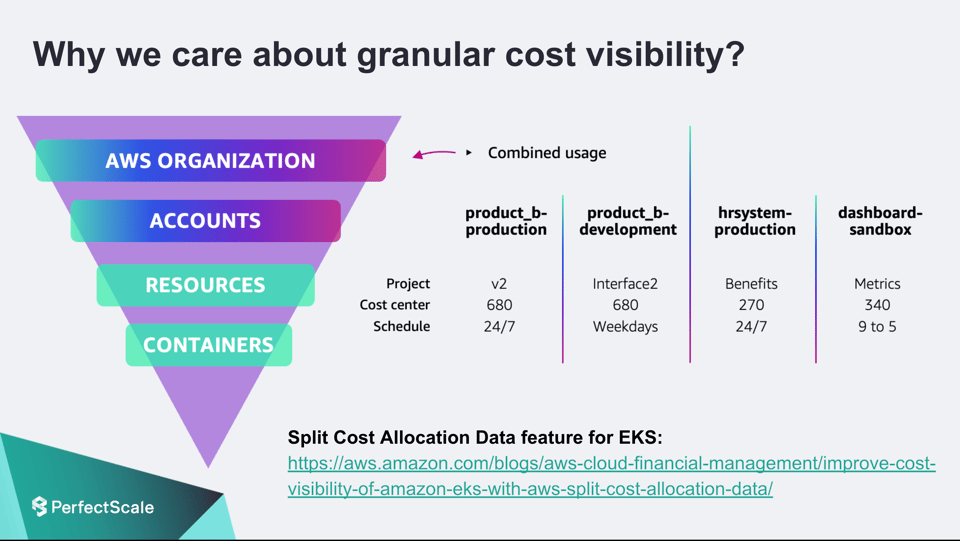
The Problem: You can’t fix what you can’t see
Imagine trying to cut costs when all you see is:
EKS: $4,332.82That number tells you nothing about:
- Which team’s workload used the most resources
- Whether a spike was caused by a specific app
- How much each namespace contributes to the bill
The Frugal Architect philosophy reminds us:
“Unobserved systems lead to unknown costs.”— Law IV, from the 7 Laws of the Frugal Architect
The Solution: Split Cost Allocation for EKS
AWS now lets you break down your EKS costs using split allocation tags — giving you clear cost visibility by workload or label. You just need to tag your workloads properly, and AWS will do the rest.
Here’s how it looks in practice:
It answers questions like:
- Which workloads are most expensive?
- Which namespaces or node groups are underused?
- Are we spending efficiently across teams?
And a deeper dive into use cases:
How to Implement Split Cost Allocation for EKS
1. Enable Cost Allocation Tags
Go to AWS Billing > Cost Allocation Tags. Turn on relevant Kubernetes tags like:
kubernetes.io/cluster/eks:nodegroup-nameCustom: app, team, etc.2. Apply Tags to Your EKS Resources
Use labels in your pod specs or Helm charts:
metadata: labels: app: payment-service team: backend3. Use AWS Cost Explorer or CUR
Analyze usage in AWS Cost Explorer or via the Cost & Usage Report (CUR) for deep insights.
›› Take a look at AWS Cost and Usage Report (CUR) with PerfectScale
Common Pitfalls with Split Cost Allocation for EKS
“Granular visibility requires intentional tagging. It won’t work by accident.” - Nataliya Godunok, AWS Senior Solutions Architect
Watch out for:
- Untagged pods — these get lumped into "unallocated"
- Inconsistent tags — make comparison difficult
- Slow data refresh — some tools update only daily
Success Metrics to Track
| Metric | Why It Matters | |
|---|---|---|
| % of EKS resources with tags | Higher = clearer visibility | |
| Unallocated cost | Should decrease over time | |
| Cost per workload/team | Enables optimization by responsibility |
Tips from the Experts
- Use automation tools like Terraform or ArgoCD to enforce tagging.
- Combine Split Cost Allocation with AWS Budgets and Cost Anomaly Detection to catch unexpected changes fast.
- Review your cost data monthly — not just during incident reviews.
Recap
Split Cost Allocation isn’t just a tool — it’s a mindset shift. It helps transform cloud cost from an end-of-month shock into an engineering signal.
| Before | After | |
|---|---|---|
| One EKS total | Cost per team, app, namespace | |
| Guessing where to cut | Data-backed decisions | |
| Surprise overages | Proactive alerts and budget triggers |