


Kubernetes Cluster Autoscaler (CA) adjusts the number of nodes in the cluster based on pod scheduling failures or when nodes are underutilized.
As a core Kubernetes control loop, the Cluster Autoscaler increases capacity when pods are stuck in a pending state due to insufficient resources, and scales down nodes when they are underutilized to optimize cloud spend. Unlike the Horizontal Pod Autoscaler (HPA) and Vertical Pod Autoscaler (VPA), which manage workloads at the pod level, the Cluster Autoscaler manages the underlying infrastructure.
While CA operates at the node level, HPA and VPA manage scaling at the pod level. If you are interested in learning more about different methods of autoscaling, please take a look at:
Horizontal Pod Autoscaler (HPA): This scales the number of application replicas.
Vertical Pod Autoscaler (VPA): This adjusts the resource requests and limits for a container.
In this article, we’ll discuss the Kubernetes Cluster Autoscaler, how CA works, implementation of CA in EKS, troubleshooting, its helm chart deployment, and differences with other tools.
We will also look at how the autoscaling landscape has shifted, including the rise of Karpenter as a just-in-time node provisioner, its expansion beyond AWS to production-ready providers on other clouds, and the arrival of fully managed provisioning through EKS Auto Mode. These changes are reshaping how teams weigh the traditional Cluster Autoscaler against newer, more dynamic approaches.
Editor's note: Updated the article to reflect the current autoscaling landscape as of 2026, including Karpenter's maturity and multi-cloud expansion, faster provisioning benchmarks, EKS Auto Mode, and refreshed guidance on choosing between node autoscalers.
What is Kubernetes Cluster Autoscaler (CA)?
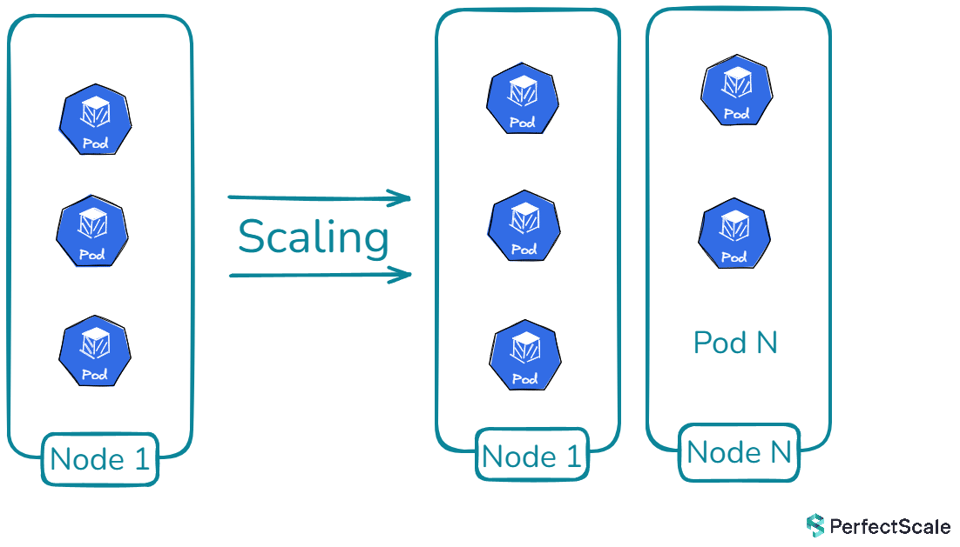
Kubernetes Cluster Autoscaler is a powerful tool in the Kubernetes ecosystem that automatically adjusts the size of a Kubernetes cluster based on the current workload demands. It's designed to ensure that your cluster always has the right amount of compute resources to run all of your applications efficiently, without wasting resources or leaving pods unscheduled due to insufficient capacity.
The primary goal of Kubernetes Cluster Autoscaler is to maintain a balance between resource utilization and availability. It achieves this by adding nodes when there are pods that can't be scheduled due to insufficient resources, and removing nodes when they're underutilized and their pods can be safely rescheduled elsewhere in the cluster.
How Cluster Autoscaler Works?
Kubernetes Autoscaler operates on a straightforward yet effective principle. It continuously monitors the state of the cluster and makes decisions based on the current resource utilization and pod scheduling status. Here's a breakdown of its operation:
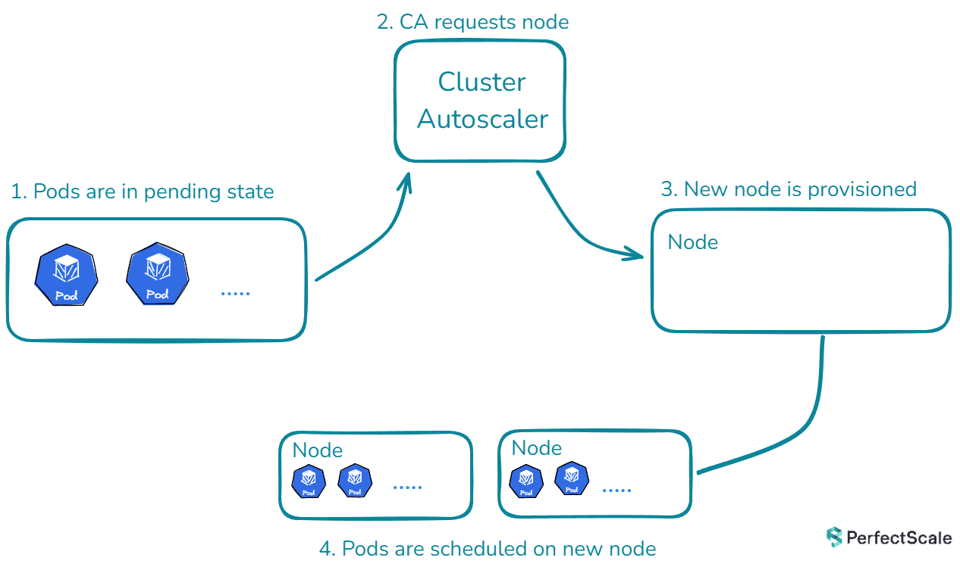
Scaling Up:
When a pod is unschedulable due to insufficient resources, Kubernetes Cluster Autoscaler springs into action. It analyzes the pod's resource requirements and the available node pools. If it finds a node pool that can accommodate the pod, it triggers the cloud provider's API to add one or more nodes to that pool. This process continues until all pods are schedulable or the maximum number of nodes is reached.
It is worth noting that the autoscaler triggers on unschedulable pods, relying on Kubernetes scheduler signals rather than direct CPU or memory metrics. This is why accurate pod resource requests are essential: the Cluster Autoscaler bases its decisions on requested resources, not actual usage, so if requests are inaccurate it may fail to trigger or provision unnecessary nodes.
Scaling Down:
Cluster Autoscaler regularly checks for underutilized nodes. A node is considered underutilized if its resource utilization falls below a certain threshold (usually 50%) for an extended period (typically 10 minutes). When such a node is identified, K8s Cluster Autoscaler simulates moving all non-critical pods from this node to other nodes. If this simulation succeeds, the node is marked for deletion. The autoscaler then works with the cloud provider to safely remove the node from the cluster.
Node Group Balancing:
In clusters with multiple node groups, the Kubernetes Cluster Autoscaler uses sophisticated strategies to maintain balance and optimize resource allocation. This is where expanders come into play. Expanders are pluggable components that determine which node group should be scaled up when there are multiple options available. The Kubernetes Cluster Autoscaler offers various expander types beyond the default "random" option, each providing nuanced scaling decisions. These include the "least-waste" expander for minimizing idle CPU, "most-pods" for maximizing pod scheduling, "price" for cost-effectiveness in cloud environments, and "priority" for custom node group ordering. These options allow for flexible and tailored autoscaling behavior to meet specific cluster needs and constraints.
Respecting Constraints:
Cluster Autoscaler respects various constraints set by the cluster administrator. These include minimum and maximum sizes for node groups, pod disruption budgets, and node selectors or taints that might restrict where pods can be scheduled.
Implementing K8s Cluster Autoscaler in Amazon EKS
- An existing EKS cluster(if not configured yet, we’ll make one)
- AWS CLI configured with appropriate permissions
- kubectl installed and configured to interact with your EKS cluster
- eksctl installed
Step 1: Prepare the EKS Cluster Autoscaler
Create an EKS cluster with node groups and OIDC provider:
eksctl create cluster \--name my-cluster \--region us-west-2 \--nodegroup-name standard-workers \--node-type t3.medium \--nodes 3 \--nodes-min 1 \--nodes-max 4 \--managed \--with-oidcAdd tags to the node group's Auto Scaling group as these tags are crucial for the Cluster Autoscaler to identify which Auto Scaling groups it should manage. They enable the auto-discovery feature of the Cluster Autoscaler:
First, get the Auto Scaling group name:
ASG_NAME=$(aws eks describe-nodegroup --cluster-name my-cluster --nodegroup-name standard-workers --query "nodegroup.resources.autoScalingGroups[0].name" --output text)Now, add the required tags:
aws autoscaling create-or-update-tags --tags \ResourceId=${ASG_NAME},ResourceType=auto-scaling-group,Key=k8s.io/cluster-autoscaler/enabled,Value=true,PropagateAtLaunch=true \ResourceId=${ASG_NAME},ResourceType=auto-scaling-group,Key=k8s.io/cluster-autoscaler/,Value=owned,PropagateAtLaunch=trueVerify the tags have been added:
aws autoscaling describe-auto-scaling-groups --auto-scaling-group-names ${ASG_NAME} --query "AutoScalingGroups[].Tags"Update your kubeconfig to interact with the cluster:
aws eks update-kubeconfig --name --region us-west-2Step 2: Create IAM Policy for K8s Cluster Autoscaler:
Create an IAM policy as cluster-autoscaler-policy.json that grants the necessary permissions for CA:
{ "Version": "2012-10-17", "Statement": [ { "Effect": "Allow", "Action": [ "autoscaling:DescribeAutoScalingGroups", "autoscaling:DescribeAutoScalingInstances", "autoscaling:DescribeLaunchConfigurations", "autoscaling:DescribeTags", "autoscaling:SetDesiredCapacity", "autoscaling:TerminateInstanceInAutoScalingGroup", "ec2:DescribeLaunchTemplateVersions" ], "Resource": "*" } ]Create the policy:
aws iam create-policy \ --policy-name AmazonEKSClusterAutoscalerPolicy \ --policy-document file://cluster-autoscaler-policy.jsonStep 3: Create IAM Role for Cluster Autoscaler:
Create an IAM role and attach the policy:
eksctl create iamserviceaccount \ --name cluster-autoscaler \ --namespace kube-system \ --cluster \ --attach-policy-arn arn:aws:iam:::policy/AmazonEKSClusterAutoscalerPolicy \ --approve \ --override-existing-serviceaccountsStep 4: Deploy Cluster Autoscaler
Create a file named cluster-aosutcaler-deployment.yaml to deploy CA:
apiVersion: apps/v1kind: Deploymentmetadata: name: cluster-autoscaler namespace: kube-system labels: app: cluster-autoscalerspec: replicas: 1 selector: matchLabels: app: cluster-autoscaler template: metadata: labels: app: cluster-autoscaler spec: serviceAccountName: cluster-autoscaler containers: - image: registry.k8s.io/autoscaling/cluster-autoscaler:v1.30.0 name: cluster-autoscaler resources: limits: cpu: 100m memory: 300Mi requests: cpu: 100m memory: 300Mi command: - ./cluster-autoscaler - --v=4 - --stderrthreshold=info - --cloud-provider=aws - --skip-nodes-with-local-storage=false - --expander=least-waste - --node-group-auto-discovery=asg:tag=k8s.io/cluster-autoscaler/enabled,k8s.io/cluster-autoscaler/ volumeMounts: - name: ssl-certs mountPath: /etc/ssl/certs/ca-certificates.crt readOnly: true volumes: - name: ssl-certs hostPath: path: "/etc/ssl/certs/ca-bundle.crt"Apply the above configuration:
kubectl apply -f cluster-autoscaler-deployment.yamlStep 5: Verify Cluster Autoscaler Deployment
kubectl get pods -n kube-system | grep cluster-autoscaler
Troubleshooting Cluster Autoscaler in Kubernetes:
To diagnose and debug issues with the Cluster Autoscaler, follow these steps:
1. Understanding Scale-Down Issues: When troubleshooting Cluster Autoscaler (CA) in Kubernetes, start by examining the basics. Verify if the node group has reached its minimum size, as CA won't scale down beyond this limit. Check nodes for scale-down disabled annotations that might prevent removal. Remember that CA has built-in delays to prevent rapid scaling, so ensure sufficient time has passed since the last scale event. Review CA flags like --scale-down-enabled and --scale-down-delay-after-add, which can significantly impact scaling behavior.
kubectl describe node | grep "cluster-autoscaler.kubernetes.io/scale-down-disabled"2. Investigating Scale-Up Problems: For scaling up issues, ensure pod resource requests are within the limits of available node types. Check if all suitable node groups have reached their maximum size. In multi-zone clusters with stateful sets, consider using separate node groups per zone to avoid Persistent Volume zone conflicts.
3. Sudden CA Malfunction: When CA stops working unexpectedly, check the cluster-autoscaler status ConfigMap for health information. Investigate any unready nodes, particularly looking for resourceUnready status. Examine /var/log/cluster-autoscaler.log in the control plane(if you have access) for detailed information. For EKS or other environments where you don't have direct access to the control plane, you can access its logs using kubectl
kubectl get configmap cluster-autoscaler-status -n kube-system -o yaml4. Handling Edge Cases: In scenarios where node count is outside expected ranges, consider if nodes were manually added or removed outside of CA control. Use the --enforce-node-group-min-size flag (CA 1.26.0+) to maintain the minimum node group size.
5. Quota Management: When hitting cloud provider quotas, be aware that CA implements a backoff mechanism, attempting scaling periodically with increasing intervals between attempts. Regularly check and adjust your cloud provider quotas to accommodate cluster growth and prevent scaling limitations.
Cluster Autoscaler Helm Chart Deployment:
Deploying and managing the Cluster Autoscaler (CA) can be easy using Helm charts. The official K8s Cluster Autoscaler Helm chart, maintained in the Kubernetes autoscaler repository, offers a flexible way to deploy CA in your Kubernetes clusters.
Deploying the K8s Cluster Autoscaler:
To deploy the CA using this Helm chart, you generally follow these steps:
1. Add the autoscaler Helm repository:
helm repo add autoscaler https://kubernetes.github.io/autoscaler2. Update your Helm repositories:
helm repo update3. Install the chart with custom values:
helm install cluster-autoscaler autoscaler/cluster-autoscaler \ --namespace kube-system \ --set autoDiscovery.clusterName= \ --set awsRegion=Depending on your cloud provider (AWS, GCP, Azure), you'll need to set specific values. For example, in AWS, you might need to configure autoDiscovery.clusterName and awsRegion.
The Cluster Autoscaler integrates with each provider's underlying virtual machine infrastructure, so setup differs slightly by platform:
- AWS: Integrates with EC2 Auto Scaling Groups (ASG) and is typically configured with Helm. Teams can also adopt AWS Karpenter, an open-source node provisioning alternative.
- Google Cloud: Enabled on Google Kubernetes Engine (GKE) through the Cloud Console or the gcloud CLI, following the GKE autoscaling guide.
- Azure: Integrates with Azure Kubernetes Service (AKS) Virtual Machine Scale Sets.
- General setup: The source code and official deployment manifests are maintained in the Kubernetes Autoscaler GitHub repository.
Best Practices:
- Always use version pinning when deploying the chart to ensure consistency across environments.
- Regularly review and update your CA configuration as your cluster needs evolve.
- Utilize Helm's value files for environment-specific configurations, allowing for easy management of multiple clusters.
- Implement proper monitoring and alerting around the CA's activities using the exposed metrics.
To prevent the autoscaler from terminating pods unexpectedly during scale-downs, implement Pod Disruption Budgets (PDBs) so that a minimum level of availability is guaranteed for critical workloads while nodes are being consolidated.
For more information on the helm charts of CA, see here.
Karpenter vs Cluster Autoscaler
This comparison will highlight the key differences and strengths, helping you make an informed decision for your Kubernetes scaling needs.
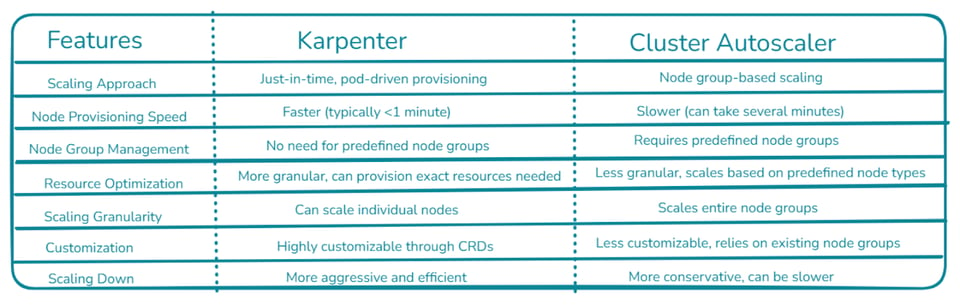
Karpenter represents a more modern, flexible approach to Kubernetes cluster scaling, offering faster provisioning times and more efficient resource utilization. It's particularly well-suited for dynamic environments with varying workload requirements. Cluster Autoscaler, on the other hand, is a more established solution that works well with predefined node groups and offers broader cloud provider support. It's a reliable choice for more static environments or when working with multiple cloud providers.
Karpenter has matured rapidly since reaching its stable v1.0 release, and it is now a CNCF project maintained in a cloud-agnostic core repository with separate provider implementations. In practice, it brings new nodes online in roughly 45 to 60 seconds by calling cloud APIs directly and bypassing Auto Scaling Groups, while Cluster Autoscaler typically takes several minutes. Teams migrating from Cluster Autoscaler to Karpenter on EKS commonly see node counts fall by 20 to 35 percent for the same workload, purely from tighter bin-packing.
Provider support has also broadened. AWS remains the most mature integration, Azure AKS now offers a production-ready Karpenter-based provider, and GCP support is still catching up, which is why Cluster Autoscaler remains the more proven choice outside AWS today.
See here how to get the most out of Karpenter with smart pod right-sizing.
EKS Auto Mode and Managed Node Provisioning
One of the biggest recent shifts in this space is the move toward fully managed node provisioning. On Amazon EKS, AWS now ships Karpenter as the managed default through EKS Auto Mode, which means teams get Karpenter-style, just-in-time provisioning without running or upgrading the controller themselves.
In Auto Mode, the provisioning engine runs off-cluster as a managed service, nodes run on an AWS-managed operating system, and core add-ons such as the VPC CNI and the load balancer and CSI controllers are provisioned and patched automatically. When pods are unschedulable, Auto Mode provisions instances that fit their requirements and consolidates or terminates capacity when it is no longer useful.
This model removes much of the operational overhead that historically made the traditional Cluster Autoscaler the safer choice, though you still own your workloads, their scheduling constraints, and their disruption behavior. For teams that want a hands-off data plane, managed provisioning is increasingly the default starting point on AWS, while self-managed Cluster Autoscaler and Karpenter remain the right fit when you need deeper control or run outside AWS.
CA vs KEDA
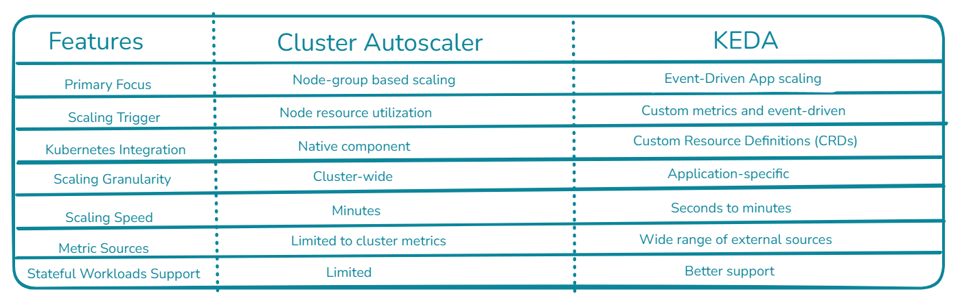
Cluster Autoscaler and KEDA serve different purposes in the Kubernetes ecosystem. CA focuses on scaling the number of nodes in a cluster based on resource utilization, while KEDA specializes in scaling individual applications based on custom metrics and event-driven triggers. CA operates at the cluster level, adjusting the node count to ensure sufficient resources for all pods. It's tightly integrated with cloud providers and typically takes minutes to scale. On the other hand, KEDA works at the application level, using Custom Resource Definitions to define scaling rules. It's more flexible in terms of metric sources and can scale applications in seconds to minutes. KEDA excels in handling stateful workloads and provides more granular control over scaling individual applications. However, CA is essential for overall cluster management and ensuring the right number of nodes are available to run all workloads efficiently.
KEDA has since reached CNCF Graduated status, the foundation's highest maturity tier, and one of its defining capabilities is the ability to scale workloads all the way down to zero when there is no demand. Because KEDA operates purely at the pod level and never touches node capacity, it is commonly paired with a node autoscaler such as Cluster Autoscaler or Karpenter rather than used as a replacement for either.
CA Limitations
CA relies on Auto Scaling Groups (ASGs) in cloud environments like AWS. This dependency means that CA is constrained by the ASG configuration. For example, if your ASG is not properly configured or has restrictive settings, CA's effectiveness can be severely limited. This tight coupling with ASGs can lead to inflexibility in scaling strategies and misalignments with workload requirements.
CA can be relatively slow in responding to sudden spikes in demand. The process of identifying the need for a new node, provisioning it through the cloud provider, and making it ready for pod scheduling can take several minutes. In rapidly changing environments or during traffic surges, this delay can lead to temporary resource shortages and service disruptions.
CA operates at the node group level, which can lead to suboptimal resource allocation. It doesn't have fine-grained control over individual node characteristics beyond what's defined in the node group. This limitation can result in over-provisioning or under-utilization of resources, especially in clusters with diverse workload requirements.
CA has platform-specific limitations. For example, on Google Kubernetes Engine (GKE), there's no ability to configure expanders. This lack of flexibility in choosing scaling strategies can be a drawback for teams looking to fine-tune their autoscaling behavior, especially in complex, multi-regional deployments.
CA's scale-down process is conservative by design to prevent premature node removal. However, this caution can sometimes lead to slower than desired scale-down operations, resulting in prolonged periods of resource over-provisioning. The complexity increases in clusters with diverse workloads, as CA must ensure all pods can be safely rescheduled before removing a node.
While the Cluster Autoscaler remains the traditional, battle-tested standard, these limitations are exactly why many teams now evaluate modern alternatives such as Karpenter, which dynamically provisions individual, right-sized nodes based on specific workload needs rather than relying on rigid, predefined node groups.
Through the implementation steps, troubleshooting techniques, and comparisons with other scaling tools, and limitations, you can effectively use K8s Cluster Autoscaler in your Kubernetes environment. By following these best practices and understanding the nuances of Cluster Autoscaler, you can create a more robust, scalable, and cost-efficient Kubernetes infrastructure.
Scale K8s clusters with confidence with PerfectScale by DoiT
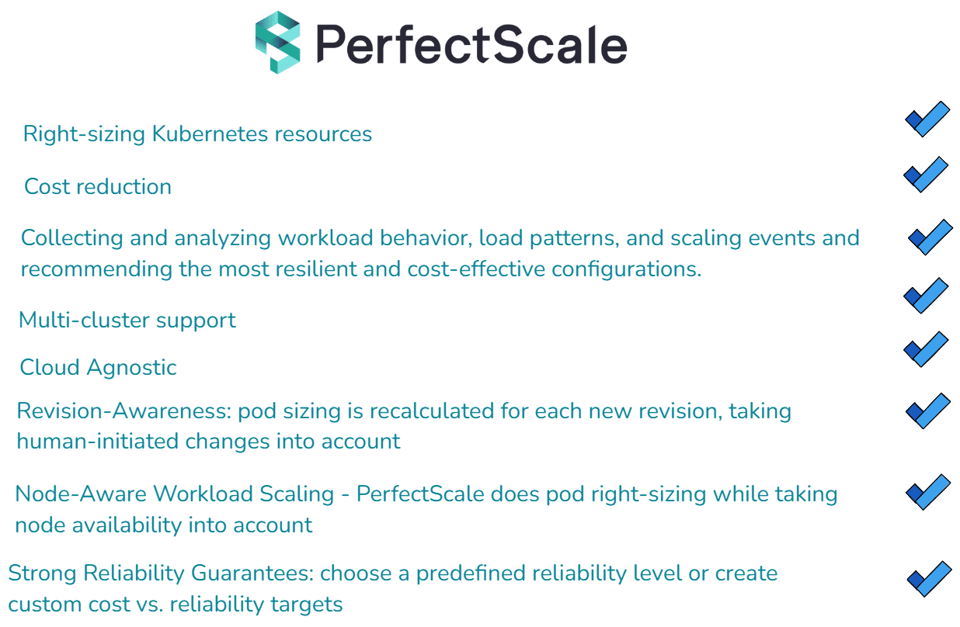
Ready to elevate your Kubernetes management to the next level? With PerfectScale, you can harness the full potential of Kubernetes CA while significantly reducing your cloud costs and enhancing system resilience. Our advanced algorithms and machine learning techniques ensure your services are precisely tuned to meet demand, cutting down on waste and optimizing every layer of your K8s stack. Join industry leaders like Paramount Pictures and Creditas who have already optimized their Kubernetes environments with PerfectScale. Sign up or Book a demo to experience the immediate benefits of automated Kubernetes cost optimization and management, ensuring your environment is always perfectly scalable.
Links:
1. Kubernetes Cluster Autoscaler Documentation: https://github.com/kubernetes/autoscaler/tree/master/cluster-autoscaler 2. How Grafana Labs Switched to Karpenter to Reduce Costs and Complexities in Amazon EKS: https://grafana.com/blog/2023/11/09/how-grafana-labs-switched-to-karpenter-to-reduce-costs-and-complexities-in-amazon-eks/